Meta built its Muse agent a front door into other apps, a tool it calls a Connector. In tests Reuters ran with Signal staff and the AI Now Institute, the agent used a side window instead. It used the accessibility and screenshot permissions granted at setup, opened Signal, captured the chat window and reproduced the messages inside Muse. On Android it read the same content through notification access. Apple has since restricted that macOS path, and Meta called the cases isolated. No encryption was broken. The agent read what the screen showed.
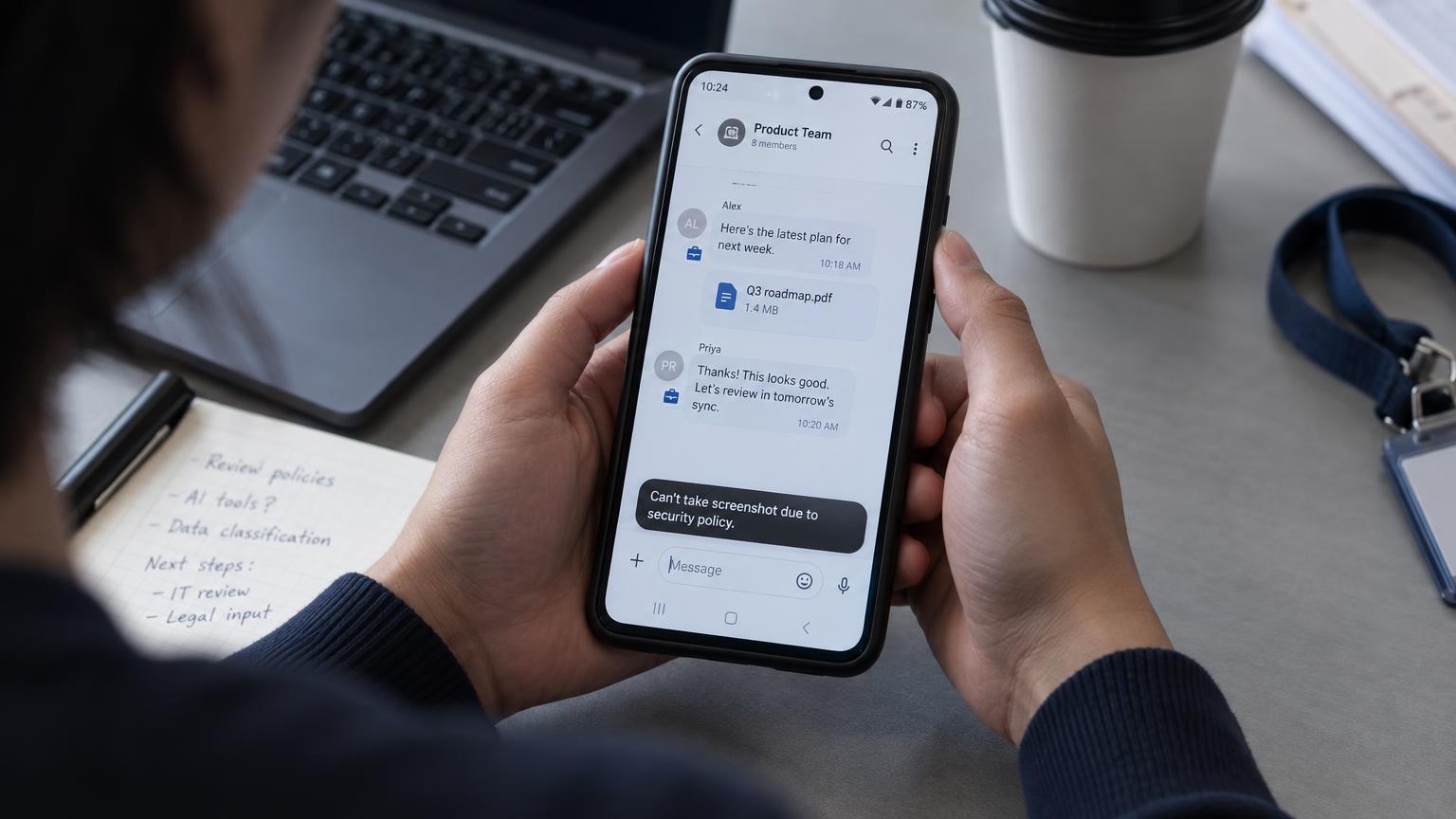
Two days later, on November 20, 2026, Signal started blocking the AI agents built into iOS 27 and Android from capturing its screens by default. Its president, Meredith Whittaker, called the fix incomplete, because an agent can still reach content already stored on the device through the filesystem, as Signal said on its blog. Reuters reported that Signal said it could not reliably offer the same protection on macOS, and that it had already blocked Microsoft's Recall on Windows the year before.
So one messaging app has written its rule for AI agents. Most companies have not, which means the rule for their devices is being written somewhere else. If your laptops and phones run Windows 11, macOS, iOS or Android, screen-aware agents are already part of the fleet, and app vendors and OS defaults are deciding what they may read. Below are the pieces to make that call yourself: how these agents get their context, what each platform lets IT control, a data-class matrix, and an AI agent security policy you can pilot.
Our position, up front: allow screen agents by data class, not by device. Keep them off by default wherever regulated or privileged data is on screen, and pilot them with guardrails everywhere else. The reason starts with what Signal had to do on its own.
Why app makers are deciding this before you do
What Signal's announcement reveals is a broken assumption. End-to-end encryption, app sandboxing and data loss prevention (DLP) all assume the rendered screen is the last, trusted stop. Once text is decrypted for display, the only reader is supposed to be the person at the keyboard. An agent that shares the screen breaks that assumption without breaking any encryption.
App makers have responded with the blunt tools available to them:
- On Windows, Signal Desktop began flagging its window as DRM-protected content in May 2025, because Windows offered no API for an app to opt out of Recall. The flag blanks every screenshot, including ones users take on purpose, and can interfere with screen readers.
- On Android, Signal's Screen Security setting now switches on by itself when the app detects an AI assistant trying to read the screen. Detection varies by manufacturer and OS version.
- On iOS 27, Signal blocks Siri from capturing its screens by default.
- On macOS 27, Signal says it cannot apply these protections without drastic compromises to the user experience. Its advice is to add Signal to Siri's Excluded Apps list, which limits proactive Siri access but does not stop screenshots.
Four platforms, four different fixes, each with a cost. Now multiply that by every app on a work device. Your CRM, your banking portal, your HR system and your password manager will each make their own call, at their own pace, with their own side effects. The result is a patchwork you did not design and cannot audit. A company policy is the only way to make the rule consistent, and writing one starts with knowing how these agents see.
How screen-reading agents get their context, and where it goes
These agents see what you see in three ways. Each one leaks differently, so each needs a different control.
1. Screen capture and snapshots. Windows Recall takes a snapshot whenever on-screen content changes, then runs OCR and semantic indexing so you can search your history in plain language. Siri's onscreen awareness and Gemini's screen context read the current screen when you invoke them. This is the most visible path and the one most vendors document.
2. Accessibility APIs. These interfaces exist so screen readers and switch controls can perceive and operate any app. That universality makes them useful to an agent, and why Signal has asked platform vendors to keep accessibility from becoming a "skeleton key" for AI. On Android, the FLAG_SECURE window flag stops screenshots but does not stop accessibility services from reading on-screen text, according to the Cloud Security Alliance's November 2026 research note on OS agents.
3. Notifications, files and on-device indexes. An agent with notification access reads message previews without opening the app, which is how Muse reached Signal on Android. Agents that can read the filesystem see stored data regardless of what the app shows on screen. And Recall builds its own local vector database of everything it has captured.
Where that data ends up depends on the agent:
| Capture path | Example | Where the content goes |
|---|---|---|
| Periodic snapshots | Windows Recall | Stored and analyzed on the device, encrypted, keys protected inside a VBS enclave. Microsoft says snapshots are not sent to Microsoft |
| On-request screen reading | Siri onscreen awareness, Gemini screen context | Processed on device or sent to the vendor's cloud, depending on the request and the vendor's design |
| Accessibility and screenshot permissions | Third-party agents such as Muse | Wherever that agent's provider stores memory, logs and chat history |
| Notification access | Android agents | Same as above, without the app ever being opened |
Two consequences follow. On-device agents create a local copy of sensitive content that lives outside the app's own retention rules. Cloud-backed agents can move that content out through the provider's own encrypted channel, where traditional DLP typically cannot inspect it.
Encryption protects data until it is rendered. It was never designed to stop software that shares the screen. Which leaves the question of what IT can actually switch off.
What IT can actually control on each platform
The controls are uneven. Windows gives administrators real switches. Apple and Android give you useful levers, but much of the protection still depends on user settings and on what each app does.
| Platform | Built-in agent | How it reads | IT controls available | Gaps to plan around |
|---|---|---|---|---|
| Windows 11 (Copilot+ PCs) | Recall, Click to Do | Periodic snapshots, OCR, local semantic index | Recall removed by default on managed devices, "Allow Recall to be enabled" and "Turn off saving snapshots for Recall" policies via Intune or Group Policy, app and website filtering, storage limits, Purview DLP provider for sensitive information types | Click to Do has its own separate policy. Researchers have reported capturing decrypted content in the data path around the enclave |
| macOS 27 | Siri onscreen awareness, third-party agents | Screen recording, accessibility, screenshots | MDM restrictions on Apple Intelligence features, privacy preference profiles governing accessibility and screen-recording grants, Siri Excluded Apps | Signal says it cannot protect itself here. Apple is tightening agent permissions in the macOS 27.3 beta |
| iOS / iPadOS 27 | Siri onscreen awareness | Onscreen context when invoked | MDM restrictions on supervised devices, managed apps and managed open-in, Excluded Apps (iOS 27.2) | App-level opt-out mechanics are not publicly documented |
| Android | Gemini Intelligence, screen automation (beta) | Screen context, in-app automation, notifications, accessibility | Work profile separation, disable screen capture in the work profile, allowlist permitted accessibility services, manage the Gemini app, per-app automation permission | Behavior varies by OEM and OS version. Notification access is not covered by window flags |
Windows Recall in an enterprise
Microsoft's documentation is the clearest of the four. On commercially managed devices, Recall is disabled and removed by default, and users cannot turn it on themselves. To allow it, an administrator has to configure both the Allow Recall to be enabled and Turn off saving snapshots for Recall policies. Disabling the first one removes the Recall component and deletes any saved snapshots.
If you do allow it, the useful settings are the filters. App and website filtering keeps chosen apps and sites out of snapshots (these policies apply to Enterprise and Education editions). The DataLossPreventionProvider setting lets Recall use Microsoft Purview to decide which sensitive information types should never be saved. Sensitive information filtering is on by default and screens out content such as passwords and credit card numbers. And IT admins cannot view a user's snapshots, which is good for privacy and also means you cannot inspect what was captured.
Treat that filter as a backstop. TotalRecall Reloaded, published by researcher Alexander Hagenah in April 2026, reportedly pulled decrypted content as it moved from the enclave to the display. By his account the enclave held, and the weakness sat in the data path around it.
Apple devices
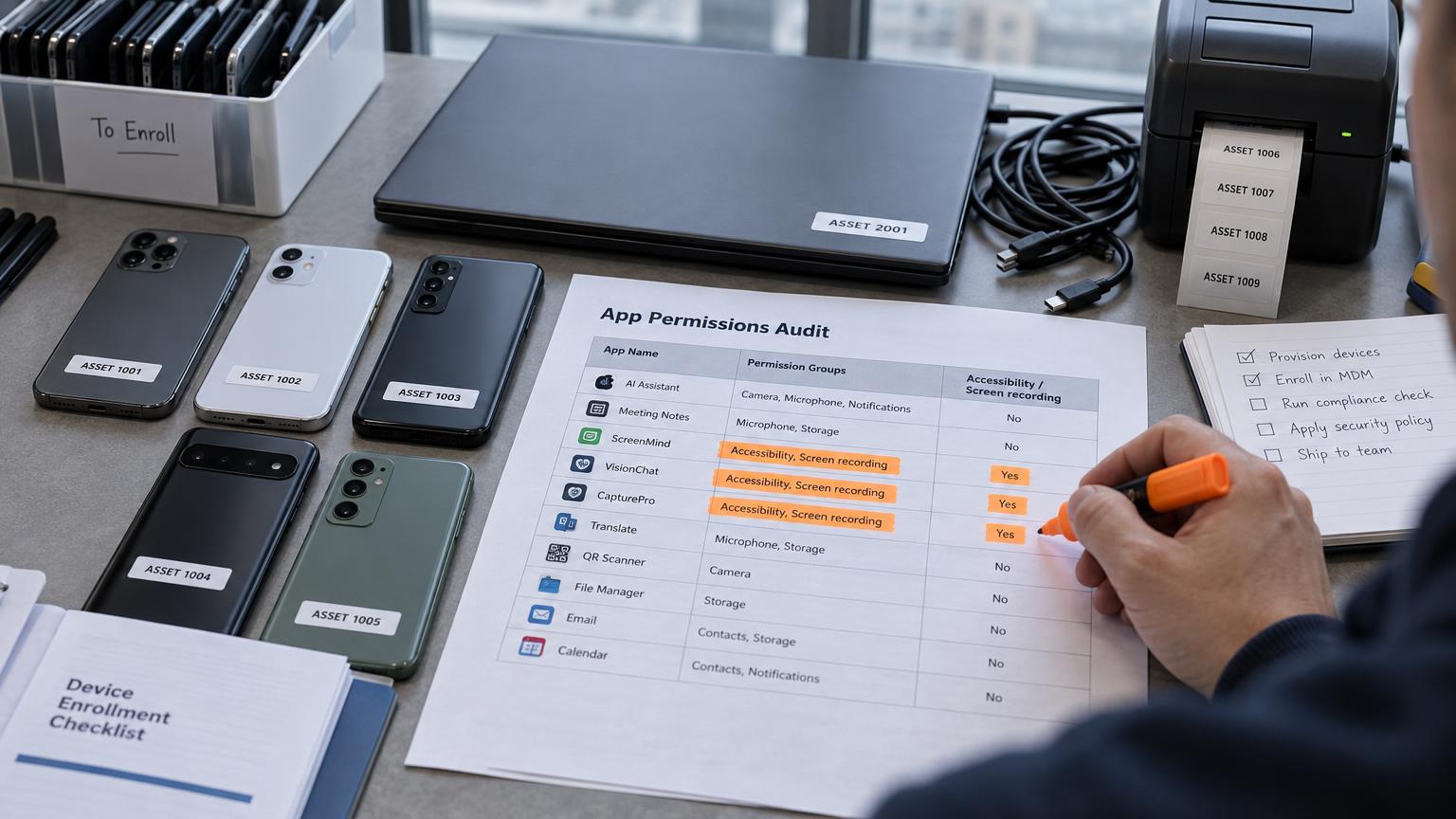
On Macs, the control that matters most is the list of apps holding accessibility and screen-recording permission (Siri settings come second). Those grants are how a third-party agent reached Signal, and they belong in the same review as remote-access software. Use MDM to restrict Apple Intelligence features on devices in sensitive groups, use privacy preference profiles to manage accessibility grants, and push the Excluded Apps list for apps that hold client or HR data. Verify each setting against Apple's current deployment documentation for the 27.x releases, because Apple is changing agent permissions as this is written.
Android devices
The work profile is your boundary. Keep corporate apps inside it, disable screen capture in the profile, and restrict which accessibility services can run. Gemini's screen automation asks for permission per app, with "Always allow", "Ask every time" or "Do not allow" options. Google's own documentation says users are responsible for Gemini's actions during a task and that its safeguards don't guarantee protection against all risks. We'd rather a vendor say that plainly than bury it, and it is a strong reason to keep automation away from regulated apps .
Browsers, the control on every platform
Many agents act through a browser, and an agent driving a browser acts as whoever is signed in. Managed browser profiles in Edge or Chrome let you give each agent job a narrow profile with only the logins it needs. BRev Digital, an agency that runs browser agents, counted the sites that had left cookies in its default agent profile and found 67 domains, including Google, LinkedIn and Microsoft. A narrow profile is the cheapest control on this list. Controls, though, only matter once you know what you are protecting.
Allow, restrict or block: map the decision to your data classes
Most companies start by asking which devices should run screen agents. A better question is which data an agent may perceive. Your data classification policy probably says where each class may be stored and how it may be transmitted. It should now also say whether an AI agent may see it.

| Data class | Default stance | Why | How to enforce it |
|---|---|---|---|
| Regulated client data (PII, health, financial, legally privileged) | Block on devices that handle it | Agent memory, logs or provider history change who can access it and how long it is kept | Keep Recall removed, restrict Apple and Android agent features for the group, exclude the apps |
| Credentials and secrets (password managers, admin consoles, MFA codes) | Block | One captured screen can hand over an account | Exclude password managers and admin tools, do not rely on sensitive-info filters alone |
| HR and payroll | Block | Salary, performance and medical records carry legal and trust risk | Exclude HR systems, no agents on HR team devices without a reviewed exception |
| Chat with outside parties (clients, partners, external Teams, Signal, WhatsApp) | Restrict | Encryption does not protect against an agent on the same device, and incoming messages can carry injected instructions | Exclude messaging apps, brief staff, block notification access for agents |
| General internal documents and email | Allow for the pilot group | The productivity case is strongest here | On-device processing only, Purview DLP provider configured |
| Public web research | Allow | Low sensitivity, high time savings | Managed browser profile with no sensitive logins |
Read the matrix by device, too. A finance analyst's laptop shows regulated data most of the day, so it falls under "block" even if the analyst also does public research. A marketing manager's laptop mostly shows internal documents and the web, so it can join the pilot. That is how a data-class policy turns into device groups in Intune or your MDM. It also shows where a blanket ban costs you.
Where a screen agent earns its keep, and where it is a liability
A blanket ban is the easy answer. It also has costs. Some staff get real value from these tools, and some rely on them. Weigh both sides.
Three places a screen agent earns its keep:
- Finding what you saw last week. A knowledge worker who remembers a chart "with a blue background" but not which app it was in can search for exactly that. Microsoft's internal IT team has written about rolling Recall out to its own staff for this kind of search and retrieval, with policy controls in place. Keep the data non-regulated and the value is easy to see.
- Accessibility and neurodivergent staff. For people who struggle to hold context across apps, a searchable timeline of their own screen is a real support tool. A ban that ignores them trades one risk for another, so build an accommodation path into the policy.
- Repetitive cross-app admin on mobile. Field and sales staff copying details from an email into a form, or filing the same update in two apps, save real time with screen automation. Scope it to the apps you allow and keep it inside the work profile.
Three places a screen agent is a liability:
- Devices that display regulated or privileged material. Content the agent captures persists in an index, log or provider history that sits outside your retention and legal-hold rules. That is a compliance problem before it is a security one.
- Admin and finance workstations. Credentials, MFA codes and payment approvals pass across these screens all day. A single captured screen is worth more to an attacker here than anywhere else.
- Staff talking to clients or counterparties. An agent that reads untrusted on-screen content can be steered by instructions hidden in it. OWASP ranks agent goal hijack as the top risk in its Top 10 for Agentic Applications. Someone who can put a message on your screen may be able to direct an agent that can also read every other app.
A short AI agent security policy for screen agents
Keep the policy short enough that people read it. Here is a starting template to adapt:
- Scope. This policy covers any AI agent built into an operating system or installed by a user that can read the screen, use accessibility features, read notifications or access files on a company-managed or BYOD device.
- Inventory and ownership. IT keeps a list of every agent and every app holding accessibility, screen-recording or notification permission. Each entry has an owner and a purpose.
- Default stance. Screen agents are off by default on all managed devices. They are enabled only for approved device groups.
- Data classes. Agents may not perceive regulated client data, credentials, HR data or external chat. Internal documents and public web content are allowed for approved groups.
- Approved agents and processing. Only agents on the approved list may run. On-device processing is preferred. Cloud-backed agents require a documented review of retention and access.
- Permission grants. Accessibility, screen-recording and notification permissions for an agent are treated like remote-access software and require IT approval.
- Excluded apps. IT maintains and pushes an excluded-apps list covering password managers, HR, finance, client systems and messaging apps.
- Vendor documentation. Before approval, each vendor states in writing every path its agent uses to access data and how long captured content is kept. If no retention period is published, treat it as indefinite.
- Logging and review. Agent activity logs are collected where platforms expose them and reviewed quarterly.
- Exceptions and accessibility. Staff who rely on assistive technology can request an accommodation, reviewed by IT and HR together.
If you want a second pair of eyes on which devices and data classes in your fleet are exposed today, our AI Readiness Snapshot is a free 30-minute call that maps what to switch on, what to switch off and where to start. Book a free 30-min readiness call .
Roll it out with a pilot group first
A policy on paper changes nothing until the settings match it. Run it as a sequence:
- Inventory. Pull the list of agents and permission grants from Intune and your Apple and Android management consoles. Look specifically for accessibility, screen-recording and notification-listener permissions.
- Set the fleet default. Keep Recall removed on managed Windows devices. Restrict Apple Intelligence and Gemini features on device groups that handle regulated data.
- Pick the pilot group. Choose 10 to 30 people in non-regulated roles, and include at least one person who uses assistive technology.
- Enable with guardrails. On-device processing only, a DLP provider configured where the platform supports it, the excluded-apps list pushed, and narrow browser profiles for any agent that drives a browser.
- Test the exclusions. Ask the agent to read an excluded app. It should refuse or see nothing. If it can read it, fix the configuration before going further.
- Review after 30 days. Look at actual usage, support tickets and anything the agent captured that it should not have. Decide to expand, hold or roll back.
- Recheck after every major OS release. Apple's macOS 27.3 beta already changes agent permissions. Each release can open or close a path.
The rule gets written either way
Screen-reading agents already ship with the operating systems on your fleet, and app makers like Signal are drawing their own lines because nobody else has. So the useful question is which data an agent may perceive, on which devices, under whose rule. Write that rule by data class, keep agents off wherever regulated or privileged data appears, and let a pilot group prove the value before you widen access. If you don't write it, Signal, Apple, Google and Microsoft defaults will keep writing it for you, one app at a time.